| Week 1 | T&L Activities:2.1 Understand the values of agile methodologies and work practicesAgile methodologies are based on the Agile Manifesto, which was introduced in 2001. The core philosophy of Agile focuses on adaptability, collaboration, and the continuous delivery of working products. Agile is built around four key values: Individuals and interactions over processes and tools.Agile places importance on the people involved in a project. It is the individuals within an organisation who respond to business needs, solve problems, and drive the development process. Tools and processes can support the work, but they should not control it. Over-reliance on tools can limit flexibility and reduce the team’s ability to respond to change. Working software over comprehensive documentation.Agile focuses on producing a working product rather than spending too much time creating detailed documentation. This does not mean documentation is unimportant. Documentation can still have value for an organisation, but it should support the development process rather than become the main priority. The main aim is to deliver software that works and meets user needs. Customer collaboration over contract negotiation.Customer involvement is a key part of Agile project management. In traditional project management approaches, the customer’s requirements are often agreed before the project begins and may be difficult to change later. In Agile, the customer is treated as an important part of the development process. Their feedback is used throughout the project to help shape and improve the final product. Responding to change over following a plan.Agile projects are completed in short development cycles, often called iterations or sprints. This allows changes to be introduced quickly and more cost-effectively. Being able to respond to change is seen as a strength because it helps the team improve the product and better meet the needs of the customer.
2.2 Understand the applications of agile methodologies and work practices in support of continuous innovation and development in a digital environmentScrum:Scrum is one of the most widely used Agile frameworks. It provides a structured way for teams to organise work, manage progress, and deliver improvements in short cycles. Scrum is often used in software development, website development, app creation, digital transformation projects, and other technology-based environments. Scrum supports continuous development because it breaks large projects into smaller, manageable sections. These sections are completed during short time periods called sprints. At the end of each sprint, the team should have produced a usable improvement or working part of the product. Defined RolesScrum usually includes three main roles: Product Owner Scrum Master Development Team Scrum EventsScrum includes regular events to organise work and review progress: Sprint Planning Daily Scrum Sprint Review Sprint Retrospective Scrum ArtefactsScrum uses artefacts to make work visible and organised: Product Backlog Sprint Backlog Increment Scrum RulesScrum rules help the team work consistently. These rules include working in fixed-length sprints, keeping tasks visible, reviewing progress regularly, and making sure completed work meets an agreed standard. The team should also use feedback to improve both the product and their working practices. Applying Daily ScrumsDaily scrums are short meetings, usually lasting around 15 minutes. They are used to help the team stay organised and aware of progress. During a daily scrum, team members usually discuss what they completed recently, what they plan to work on next, and whether there are any problems blocking their progress. Daily scrums support continuous development because issues can be identified early. For example, if a developer is struggling with a login feature, the team can quickly offer support or adjust the workload before the problem delays the whole project. Daily scrums also improve communication. In digital projects, different team members may be working on coding, testing, design, security, documentation, or user feedback. Regular communication helps make sure everyone understands what is happening and how their work connects to the wider project. Breaking Workloads Down into SprintsIn Scrum, large workloads are broken down into smaller sections called sprints. A sprint is a short, fixed period of work, often lasting between one and four weeks. During each sprint, the team focuses on completing a specific set of tasks from the sprint backlog. Breaking work into sprints makes digital development easier to manage. Instead of trying to deliver a complete system all at once, the team can focus on smaller improvements. This reduces complexity and allows progress to be reviewed more regularly. For example, if a team is developing an online booking system, the work could be split into several sprints:
This approach supports continuous innovation because each sprint creates an opportunity to test, gather feedback, and improve the product. If user needs change, the team can adjust future sprints rather than having to restart the whole project. Overall, Scrum supports Agile working by giving teams a clear structure while still allowing flexibility. It helps teams manage workloads, communicate regularly, respond to feedback, and deliver ongoing improvements in a digital environment. KanbanManages workloads by balancing demands with available capacity Kanban is an Agile work practice used to manage tasks by making work visible and controlling how much work is being completed at one time. In digital support services and security, teams often receive a constant flow of tasks, such as support tickets, password resets, software updates, incident reports, security alerts, and system maintenance requests. Kanban helps teams balance demand with the capacity they have available. This means the team only takes on a realistic amount of work based on the number of staff, their skills, the urgency of the tasks, and the time available. For example, if a digital support team has several staff absent, Kanban can help prevent too many tickets from being started at once. Instead, the team can prioritise the most important work, such as restoring access to critical systems or responding to a possible security breach. In a security context, balancing workload is important because some tasks are higher risk than others. A malware alert or failed backup may need to be prioritised over a routine software request. Kanban supports this by allowing teams to see all tasks clearly and decide which work should be completed first. Identifies bottlenecks in workload A bottleneck happens when work builds up at a certain stage and slows down the overall process. Kanban helps teams identify bottlenecks because tasks are displayed visually on a board. If too many tasks are sitting in one column, it shows that part of the process may need attention. For example, in a digital support team, lots of tickets may build up in a “Waiting for Technician” or “Testing” column. This could show that there are not enough staff available, that tasks are too complex, or that users are not providing the information needed to resolve the issue. In a cyber security team, bottlenecks may occur during incident investigation, vulnerability patching, or approval stages. For example, if several security updates are waiting for testing before deployment, this creates a risk because systems may remain vulnerable for longer. Kanban helps the team spot this issue quickly and take action, such as assigning more staff, simplifying the approval process, or escalating urgent security tasks. Identifying bottlenecks improves service quality because users receive faster support and security issues are less likely to be delayed. Manages work using a Kanban board A Kanban board is a visual tool used to track work as it moves through different stages. It usually contains columns such as:
Each task is represented by a card. The card may include the task name, priority, deadline, person responsible, and any important notes. In digital support services, a Kanban board could be used to manage support tickets. For example, a ticket about a printer fault may start in “To Do”, move to “In Progress” when a technician begins work, move to “Testing” when the fix is checked, and finally move to “Complete” once the user confirms the issue is resolved. In security, a Kanban board could be used to manage tasks such as vulnerability scanning, patch deployment, user access reviews, phishing investigations, firewall rule changes, and backup checks. This makes it easier for the team to understand what work is active, what is urgent, and what has already been completed. Kanban boards also support communication. Managers, technicians, analysts, and stakeholders can quickly see the status of work without needing constant meetings or email updates. Uses work in progress (WIP) limits to prevent over-commitment. Work in progress, often shortened to WIP, means the amount of work currently being completed. Kanban uses WIP limits to control how many tasks can be active at one time. This prevents teams from starting too many tasks before finishing existing ones. For example, a digital support team may set a WIP limit of five tasks in the “In Progress” column. This means that only five tasks can be actively worked on at once. If the limit has been reached, the team must complete or move an existing task before starting a new one. This is useful because too much active work can lead to mistakes, delays, poor communication, and unfinished tasks. In digital support, this could mean users waiting longer for issues to be resolved. In security, it could mean important tasks such as patching, malware investigation, or access control reviews being delayed. WIP limits help teams focus on finishing work rather than simply starting new tasks. This improves efficiency and reduces the risk of over-commitment. In security-related work, it also supports safer practice because analysts and technicians are less likely to rush or miss important details when investigating threats or applying fixes. Overall, Kanban supports digital support services and security by making work visible, helping teams prioritise tasks, reducing delays, and ensuring that workloads remain manageable. Dynamic systems development method (DSDM)Fixed cost, quality and time
Uses MoSCoW in the prioritisation of scope. which dictates whether features Must, Should, Could, or Won't be delivered within a given timeframe. This means if time runs tight, the least valuable features are dropped first to preserve deadlines and quality
Feature-driven development:o breaks down development into smaller features o plans, designs and builds by feature. Crystal:o focuses on communications and interactions between people over processes and tools. Lean (7 principles)o eliminate waste o build in quality o create knowledge o defer commitment o deliver fast o respect people o optimise the whole. Extreme programming (XP)o advocates frequent releases in short development cycles o introduces check points when new customer requirements can be adopted o uses planning and feedback loops. Files that support this week | English:
|
Assessment:
|
Learning Outcomes:
|
Awarding Organisation Criteria:
|
| Maths:
|
|||||
| Stretch and Challenge:
|
E&D / BV | ||||
| Homework / Extension:
|
ILT | ||||
| → | → | → | → | → | → |
| Week 2 | T&L Activities:2.3 Understand the incorporation of digital technologies by organisations into key areas of business operations and the implications for digital support roles• Key areas: o finance: – budget/finance dashboards – invoicing processes – online expense tracking o sales and marketing: – customer relationship management (CRM) systems – social media management and tools o operations: – performance dashboards – online ticket systems o human resources: – personnel management systems – digital training o communications: – video conferencing – collaborative platforms o research and development: – access to information – development environments (for example computer-aided design (CAD), integrated development environment (IDE). • Implications for digital support roles: o increased demand for support due to organisational system’s reliance on digital systems o increased training needs of workforce due to reliance on digital competencies and digital skills o increased requirement for CPD to support changing systems and technologies o requirement to operate and maintain changing digital information systems to support the organisation to collect, store, maintain and distribute information. Files that support this week | English:
|
Assessment:
|
Learning Outcomes:
|
Awarding Organisation Criteria:
|
| Maths:
|
|||||
| Stretch and Challenge:
|
E&D / BV | ||||
| Homework / Extension:
|
ILT | ||||
| → | → | → | → | → | → |
| Week 3 | T&L Activities:2.4 Understand the application of service functions in creating a domain within a networked environmentActive directory domain services (AD DS):o active directory – provides functionality to centrally manage and organise user and device accounts, security groups and distribution lists, contained in organisational units (OUs)- Investigate using the link below the steps to create an Organisational Unit in Active Directory using the simulation o group policy – provides functionality to create group policy objects (GPOs) which can be applied to OUs. GPOs can be applied to deploy settings and files to users’ profiles and devices, based on their OU.
• Dynamic host configuration protocol (DHCP) – a network management protocol to assign IP addresses and network configuration to a network client device.
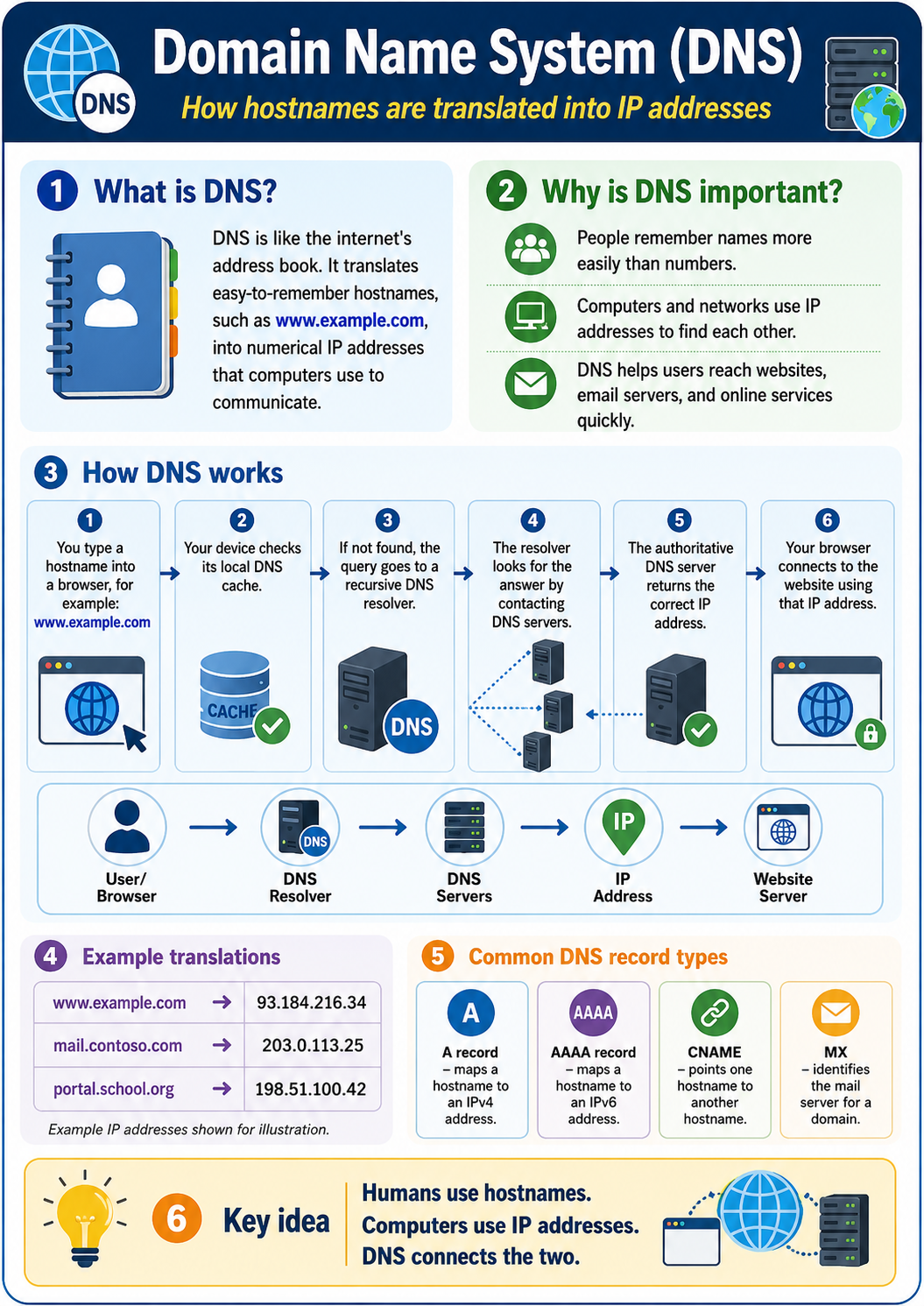
• Domain name system (DNS) – for the translation of hostnames to IP addresses.
• File server and distributed file system (DFS) – to provide shared disk access and manage permissions.
• Print server – to provide shared printer access.
• Mail servers – manage emails to/from client mailboxes.
• Certificate authorities – application of digital certificates to certify the ownership of a public key for use in encryption. LetsEncrypt - Free RSA DES
Files that support this week | English:
|
Assessment:
|
Learning Outcomes:
|
Awarding Organisation Criteria:
|
| Maths:
|
|||||
| Stretch and Challenge:
|
E&D / BV | ||||
| Homework / Extension:
|
ILT | ||||
| → | → | → | → | → | → |
| Week 4 | T&L Activities:2.5 Understand the applications and processes of content management system (CMS) and the methods used to identify and resolve user problemsContent Management Systems and User Support ManagementApplications and Processes of a Content Management SystemA content management system, commonly known as a CMS, is a software platform used to create, organise, edit, publish and maintain digital content. Most CMS platforms are used to manage websites, intranets, online learning environments, knowledge bases and digital service portals. A CMS allows users to manage content through a graphical interface rather than having to write all the underlying HTML, CSS or programming code. This means that staff with limited technical knowledge can update web pages, upload documents, publish news articles and manage multimedia content. Common applications of a CMS include:
A typical CMS process begins when an authorised user signs in to the administration area. The user creates or edits content, adds images or documents, selects the correct page layout and submits the content for approval. Depending on the organisation, the content may be reviewed by an editor or manager before it is published. Many CMS platforms use a content workflow such as:
These processes help organisations maintain accurate, consistent and professional content. Examples of CMS Applications | English:
|
Assessment:
|
Learning Outcomes:
|
Awarding Organisation Criteria:
|
| Maths:
|
|||||
| Stretch and Challenge:
|
E&D / BV | ||||
| Homework / Extension:
|
ILT | ||||
| → | → | → | → | → | → |
| Week 5 | T&L Activities:2.7 Understand the types of operating systems and how they are used in a digital support environment• End user (for example, Windows, macOS, Linux):o used on desktop PCs and laptops. • Mobile (for example, iOS, Android):o used on tablets, devices and mobile phones. Investigate the features and functions of IOS and Andriod using the below website. • Server (for example, Windows, Linux):o used in client-server network environments. 2.8 Understand the range of application types used in a digital support context• Productivity software:o word processing software o spreadsheet software o presentation software o visual diagramming software. • Web browser.• Collaboration software:o email client o conferencing software o voice over internet protocol (VoIP) o instant messaging software o online workspace o document sharing. • Business software:o database software o project management software o business-specific applications (bespoke) o accounting software o customer relationship management (CRM) o ticket management software. • Development software:o computer-aided design (CAD) o integrated development environment (IDE). 2.9 Understand application installation and configuration concepts in a digital support context and be able to install and configure software and systems• System requirements:o storage space o RAM o compatibility o processor o OS. • Hard disk drive (HDD) configuration:o advantages: – increased storage capacity – lower cost o disadvantages: – high risk of damage due to moving parts – greater potential to overheat. • Solid state drive (SSD) configuration:o advantages: – faster access – faster write and rewrite speeds – lower risk of damage due to no moving parts – applied in devices to reduce device size (for example mobile phone, tablet) o disadvantages: – higher cost – less storage capacity. • Network card configuration:o advantages: – efficiency – highly secure – runs efficiently o disadvantages: – higher cost – performance lifespan. • Resource setup for performance optimisation.• Permissions:o folder/file access for installation and operation o user authorisation o principle of least privilege. • Security considerations: o impact to device o impact to network o impact on usability o impact on the way data is stored. • Install and configure software and systems onto end user devices:o remotely install an operating system and configure system settings: – select appropriate boot drive and configure with the correct partitions/formats – configure domain set-up – configure time, date, region and language settings – install additional drivers – install any available updates (for example Windows updates) – upgrade an existing operating system ensuring all user data is preserved. • Install productivity software:o apply software updates o install network-based software. Files that support this week | English:
|
Assessment:
|
Learning Outcomes:
|
Awarding Organisation Criteria:
|
| Maths:
|
|||||
| Stretch and Challenge:
|
E&D / BV | ||||
| Homework / Extension:
|
ILT | ||||
| → | → | → | → | → | → |
| Week 6 | T&L Activities:2.10 Understand operating system (OS) deployment considerations in a digital support context• System requirements.• Hardware configuration.• Methods of installation and deployment:o network-based o local (for example, CD/USB) o virtualised o cloud-based. • Boot methods:o internal hard drive: – SSD – HDD o external media drive: – USB-based/solid state (for example, flash drive, hot-swappable drive) o network-based: – preboot execution environment (PXE) – Netboot. • Partitioning:o dynamic o basic o primary o extended o logical o GUID Partition Table (GPT). • File system types:o Extensible File Allocation Table (exFAT) o FAT32 o New Technology File System (NTFS) o Resilient File System (ReFS) o Network File System (NFS) o third extended file system (ext3) o fourth extended file system (ext4) o Hierarchical File System (HFS) o swap partition. • File system formatting:o quick format: – files easier to recover – no scanning for bad sectors – less time intensive o full format: – full scrubbing of files – files harder to recover – full scan of bad sectors – more time intensive. 2.11 Understand the types of deployment methods and the advantages and disadvantages of their application• Unattended installation – requires minimal technician response dueto pre-defined options being set up: • Thin imaging:o advantages: – used on a large scale – used on a variety of devices – ability to put out latest software for build – flexibility o disadvantages: – requires more maintenance – more difficult to configure. • Base image:o advantages: – used on a large scale – built to meet specific purpose – easier to create o disadvantages: – more difficult to maintain – less flexible. • In-place upgrade – upgrading an operating system without a fullclean install o advantages: – efficient process – user profiles are not lost – simple process o disadvantages: – potential compatibility issues – requires operating system media or large download. • Manual clean install – installing an operating system with the installation media:o advantages: – most appropriate/latest version of operating system – simple process o disadvantages: – may require a back-up – timely process. • Repair installation – performing a repair installation without data loss and without upgrading:o advantages: – no loss of data – no need to check compatibility – may resolve operating system and application instabilities o disadvantages: – manual process – may not resolve operating system and application instabilities. • Multi-boot – ability to boot a single device with multiple operating systemso advantages: – ability to run multiple operating systems from different manufacturers o disadvantage: – difficult to set up and maintain. • Remote network installation – installing an operating system from a network boot:o advantages: – physical access may not be needed – takes advantage of unattended installation – efficient deployment to multiple devices o disadvantages: – speed of deployment is limited to network capabilities – specific network configuration may be required – requirement for specific device features (for example PXE booting capabilities) – significant configuration required. Files that support this week | English:
|
Assessment:
|
Learning Outcomes:
|
Awarding Organisation Criteria:
|
| Maths:
|
|||||
| Stretch and Challenge:
|
E&D / BV | ||||
| Homework / Extension:
|
ILT | ||||
| → | → | → | → | → | → |
| Week 7 | T&L Activities:2.12 Be able to deploy software applications and operating systems remotely
• Gather and analyse user data to determine requirements.
• Select and configure appropriate deployment method:
o thin imaging: – gather software installer and drivers and build task sequence o base image: – install operating systems, drivers and software. – configure operating system, applications and drivers – capture disk image. • Deploy operating system with chosen method.
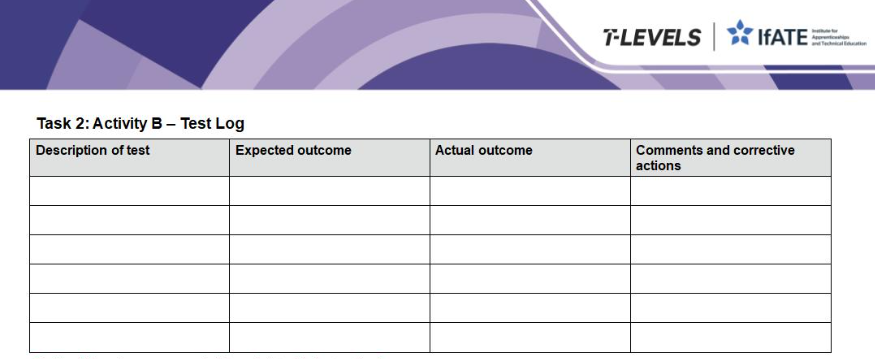
• Apply updates to operating system, applications and drivers.• Test deployment meets business requirements.
• Comply with organisational safety and security policies and procedures.
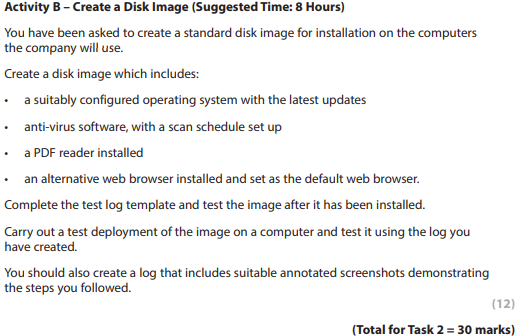
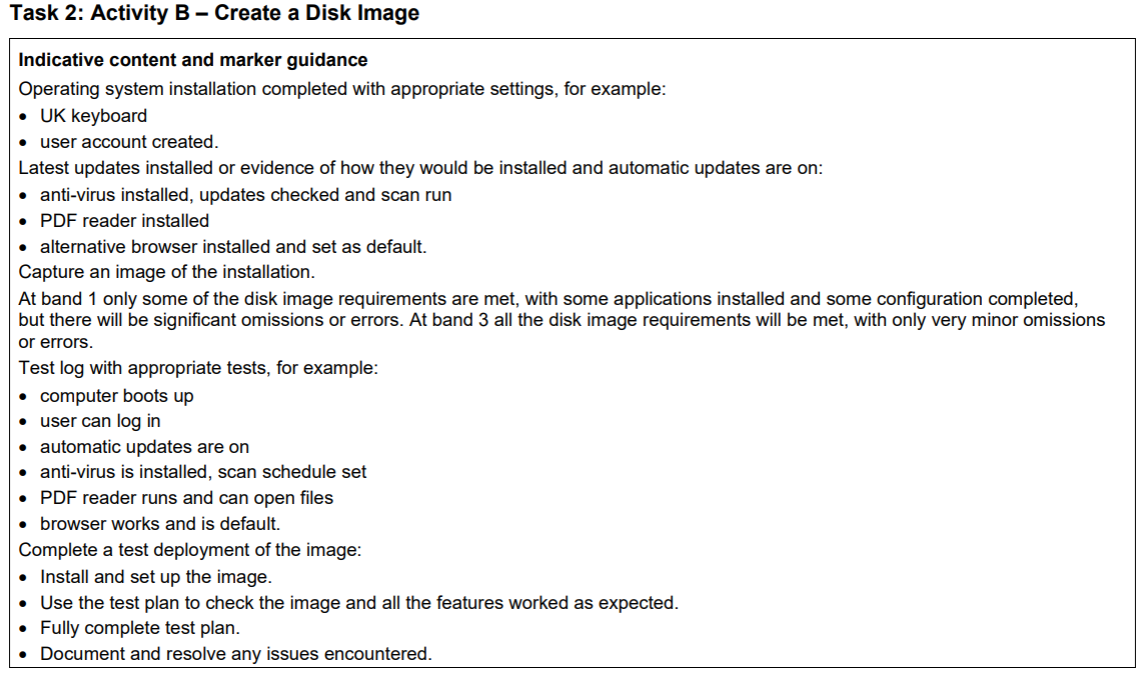
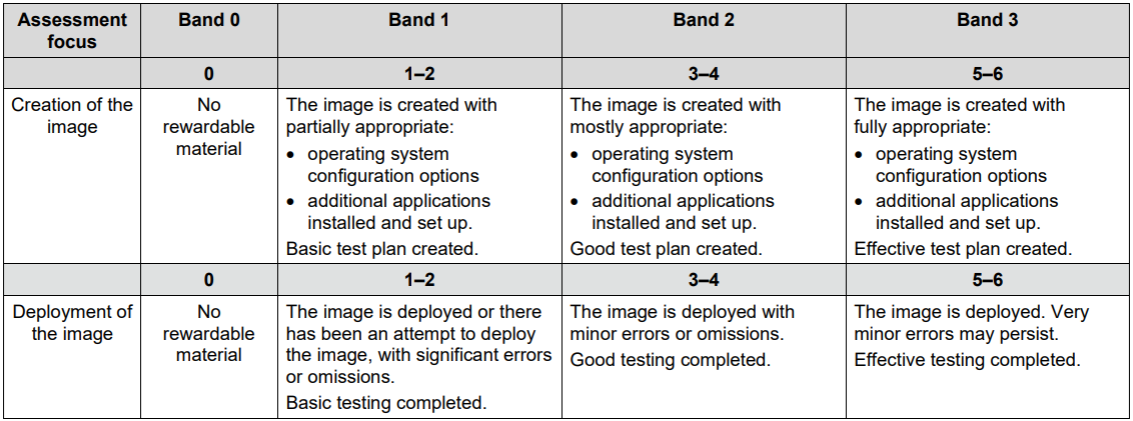
2.13 Understand the steps in creating and deploying disk imagesThere are a number of methods to create and deploy disk images to hardware within a company network, these can be by, Windows Deployment Services, Norton Ghost, WinPe and many other third party deployment serivces. The below videos will demonstrate the different approaches that can be used.
• Creation of a base image file.
• Creation of customisation or answer file.
• Addition of any additional drivers and software required.
• Distribution of the image.
• Deployment of the image.
• Updating software versions and drivers to avoid introducing vulnerabilities and instabilities.
Practical
2.14 Understand the benefits of using image files to deploy operating systems or software
• Automation requires fewer resources.
• Ensures consistency of deployment.
• Reduces ongoing support costs.
• Quick system restoration.
Files that support this week | English:
|
Assessment:
|
Learning Outcomes:
|
Awarding Organisation Criteria:
|
| Maths:
|
|||||
| Stretch and Challenge:
|
E&D / BV | ||||
| Homework / Extension:
|
ILT | ||||
| → | → | → | → | → | → |
| Week 8 | T&L Activities:2.15 Understand the purpose and process of system recovery and restoration
• System recovery:o fixes a system in its current state o preserves all files and folders. • System restoration: o applied when system recovery fails o reverts system back to a previous state.
• Process:o ensuring data is backed up o booting in system recovery tools o following on-screen instructions o testing of issue to confirm resolution. 2.16 Understand the purpose and types of corporate and internet service provider (ISP) email configurations and their applications within digital support• Email configuration – server configuration of an email account used when traffic moves through a firewall or when configuring an email account set-up:o Post Office Protocol 3 (POP3) – used to receive emails from the server to a local piece of software o Internet Message Access Protocol (IMAP) – allows emails to be held on a mail server and received by software o Simple Mail Transfer Protocol (SMTP) – used to receive emails that are sent over the internet o Secure/Multipurpose Internet Mail Extensions S/MIME) – used to send encrypted email messages o port and Secure Sockets Layer (SSL) settings – encrypted connection between the website server and the browser to improve security o Transport Layer Security (TLS) – successor to SSL, used to provide security for data. 2.17 Understand the process of the configuration of on-premises and cloud-based integrated commercial provider email services:
• Ensuring alignment with corporate policy.
• Configure user profiles (for example, usernames, passwords, email signatures).
• Identifying and selecting:o provider (for example, G Suite, Microsoft 365) o protocol (for example, SMTP, IMAP, POP3) o configure mail exchange (MX) record o domain for incoming mail o domain for outgoing mail. Files that support this week | English:
|
Assessment:
|
Learning Outcomes:
|
Awarding Organisation Criteria:
|
| Maths:
|
|||||
| Stretch and Challenge:
|
E&D / BV | ||||
| Homework / Extension:
|
ILT | ||||
| → | → | → | → | → | → |
| Week 9 | T&L Activities:2.18 Understand the purpose of remote access and its application within digital support
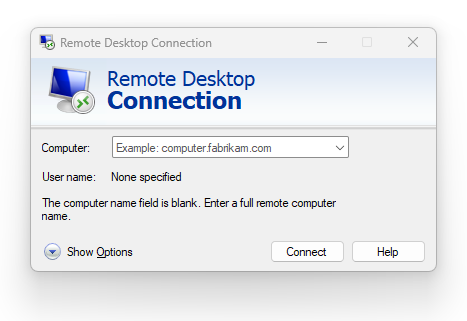
• Purpose:o facilitates work from a remote location using network resources as if connected to a physical network or a choice of multiple networks (for example, facilitates working from home due to office closure as part of a BCP).
• Applications:o desktop sharing o remote support (for example, fault diagnosis, remote correction of user issues) o off-site working. 2.19 Understand the role and configuration factors of a VPN in securing remote access and remote support to protect data
• Role:o encrypts network traffic o masks IP address to increase privacy.
• Configuration factors:o settings o client configurations o server configurations o port and security protocols (for example, TLS, SSL) o encryption setting and certificates o authentication. 2.20 Understand the process of configuring a simple VPN
• Configuration of the VPN server:o enabling the VPN service o configuring IP address and DNS hostnames of the VPN interface o managing user access including authentication and permissions.
• Configuration of the client device:o creating the connection o setting the destination IP address and fully qualified domain name (FQDN) o setting permissions and conditions. Files that support this week | English:
|
Assessment:
|
Learning Outcomes:
|
Awarding Organisation Criteria:
|
| Maths:
|
|||||
| Stretch and Challenge:
|
E&D / BV | ||||
| Homework / Extension:
|
ILT | ||||
| → | → | → | → | → | → |
| Week 10 | T&L Activities:2.21 Understand the support processes provided to end users and customers• User management:o adding users o removing users o accessing times. • Password management:o complexity setting o expiry o reset on next logon. • Permissions and privileges:o access to resources o group policies o configuring shared resources.
• Installation and deployment of software.
• Connection to remote resources.
• Fault identification.
• Issue escalation from first to third line support.
• Knowledge management:o documentation.
• Known fixes.
• SOPs.
• Asset management.
• Auditing.2.22 Be able to solve problems as they arise and apply appropriate methods in a digital support context
• Apply troubleshooting to diagnose problems:o information: – investigate support requests – investigate probable causes – troubleshoot issues. o problem analysis: – eliminate known fixes and problems – eliminate potential causes – consider remaining possibilities. o test remaining possibilities: – test and eliminate possible causes – identify the appropriate solution. o apply problem resolution: – back-up data on system – implement the solution – test the solution – repeat process until required outcome is achieved – document the cause and solution on fault logging system. o implement actions to mitigate against the cause reoccurring. Files that support this week | English:
|
Assessment:
|
Learning Outcomes:
|
Awarding Organisation Criteria:
|
| Maths:
|
|||||
| Stretch and Challenge:
|
E&D / BV | ||||
| Homework / Extension:
|
ILT | ||||
| → | → | → | → | → | → |
| Week 11 | T&L Activities:2.23 Be able to monitor and operate information systems
Analyse performance of system components:o hardware o software o database o network o people.
• Assess and monitor the appropriate security controls (for example, firewalls, anti-virus).
• Monitor network performance and user traffic.
• Operate and maintain assets:o track software licences o respond to requests for hardware and software o log and tag assets correctly.
• Support users via face to face or remote access software:o train users in use of the system o organise and record user issues within a content management system o user password management o fault identification o issue escalation.
• Record and summarise all relevant findings and actions to inform future policies and procedures:o logically organise all findings o using appropriate technical terms. 2.24 Understand the components of version control management and its application within digital support
• Fresh installation:o OS o application software o utility software o licensing.
• Patching and updating:o system updates (for example OS updates) o driver/firmware updates o anti-virus/anti-malware updates o software and applications.
• Updates:o installation of updates o rollback procedures: – rollback device drivers o rollback OS update failures o rollback updates.
• Deployment using network tools (for example, group policy):o locally installed o network deployed o testing o release control. 2.25 Understand the process of asset management and its application in digital support
• Identification and planning:o user needs o organisational needs o constraints o deployment strategies.
• Acquisition and implementation:o sourcing assets (for example hardware and software) o integration into current system.
• Operation and maintenance:o tracking software licences o responding to requests for hardware and software.
• Decommissioning and redeployment:o removing non-utilised assets o decommissioning out-of-date systems o management of new or leaving staff profiles. Files that support this week | English:
|
Assessment:
|
Learning Outcomes:
|
Awarding Organisation Criteria:
|
| Maths:
|
|||||
| Stretch and Challenge:
|
E&D / BV | ||||
| Homework / Extension:
|
ILT | ||||
| → | → | → | → | → | → |
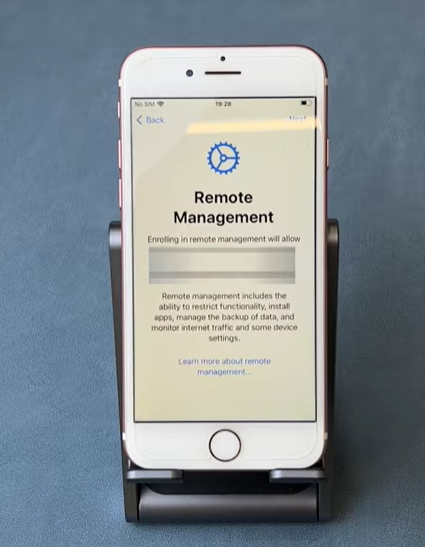
| Week 12 | T&L Activities:2.26 Understand the purpose and applications of mobile device management (MDM) and be able to configure accessories and ports of mobile devicesPurpose:o tracks and locates mobile devices o secures mobile devices o manages use of devices o manages configurations: – wireless data network – cellular data network – hotspot – tethering – airplane mode – Bluetooth – email accounts. Remote management:
Remote wipe Remote wipe allows an authorised administrator to delete data from a mobile device without physically accessing it. It is normally used when a device is:
A full remote wipe may erase the entire device and return it to its factory settings. A selective wipe removes only organisational data, applications and user accounts while leaving personal information on the device. For example, if an employee loses a tablet containing customer records, the IT department can remotely remove those records before an unauthorised person accesses them. Remote wipe reduces the risk of:
However, remote wipe normally requires the device to connect to the internet before the command can be received.
Disabling functionalities Disabling functionalities means preventing users from accessing certain device features. An organisation may disable:
The restrictions selected depend on how the device is being used. For example, a healthcare organisation may disable screenshots and copying while staff are viewing patient records. A secure workplace may disable the camera to prevent employees from photographing confidential information. Disabling unnecessary features reduces the number of ways data can be copied, transferred or exposed. However, organisations must avoid disabling functions that employees need to complete their work. Restricts mobile devices Restricting mobile devices means controlling which devices are allowed to access an organisation’s systems, networks and data. An organisation may require devices to be:
A device may be blocked if it is:
For example, an employee may be prevented from accessing work email from a personal phone that has not been approved by the organisation. This helps prevent insecure or compromised devices from becoming an entry point into organisational systems.
Controls app store Controlling the app store allows an organisation to decide which applications users can install and use. The organisation may provide a managed app store containing only approved applications. It may also block:
The IT department may also remotely:
For example, delivery drivers may only be allowed to install route-planning, parcel-scanning and secure communication applications. Controlling applications reduces the risk of malware, data leakage and inappropriate use. It also helps ensure that employees use compatible and properly licensed software.
Restricts calling/data use. Restricting calling and data use allows an organisation to control how employees use calls, text messages, mobile data and roaming services. The organisation may block or limit:
MDM or mobile network management systems can also monitor usage and alert administrators when a device exceeds an agreed allowance. For example, a company could prevent employees from using work phones to make premium-rate calls or stream films using the organisation’s mobile data plan. These controls help to:
Restrictions should be explained clearly through an acceptable-use policy so employees understand what is and is not permitted.
Controls back-up and synchronisation. Controlling backup and synchronisation determines where organisational data can be copied, stored and synchronised. Mobile devices often automatically back up:
Without suitable controls, work information could be copied to an employee’s personal cloud account, such as personal Google Drive, iCloud, Dropbox or OneDrive storage. An organisation may therefore:
For example, photographs taken as evidence of a completed delivery may be synchronised to the organisation’s secure server but blocked from uploading to the employee’s personal photo account. These controls help prevent confidential information from being stored in unauthorised locations. They also ensure that important organisational data is backed up and can be recovered if a device is lost, damaged or replaced.
Using the 4 case studies below, reflect on the situations experienced in each and answer the questions provided at the bottom of the documents.
Security:o screen lock o encrypts device o password enforcement o failed login attempts/login restrictions o multi-factor authentication.
Applications:Segregation: – multiple profile options for personal and professional use – management of application data – compliance with organisational policies and procedures.
Authenticator applications (for example, Google authentication, fast identity online (FIDO)).There are many authentications applications available to users, Lenovo discuss the purposes of and how authenticator apps work. Using the provided document research and complete the questions. Apply mobile device management (MDM) to configure mobiledevices to allow:o wireless data networks o cellular data networks o hotspots o tethering o airplane mode o Bluetooth o email accounts. 2.27 Be able to explain the application and benefits of digital solutions to meet specific requirements
• Analyse requirements:o access to information, services or products o conducting transactions.
• Identify the best application of digital solutions to meet requirements:o digital systems (for example, content management systems) o productivity software o digital technologies.
• Explain the benefits of applying the identified digital solution:o express ideas clearly and concisely o use appropriate level of detail to reflect audience requirements o use technical terminology. 2.28 Be able to operate digital information systems and tools to maintain information and delivery of a digital support service
• Operate information systems to collect, store, maintain and distribute information to support service delivery.
• Process and review user feedback data on service:o critically analyse validity of user feedback.
• Maintain service delivery and information:o create, action and update tickets o communicate the status of tickets with users o monitor and record system performance o support users remotely by utilising remote support software.
• Record and summarise all relevant findings and actions to inform future policies and procedures:o logically organise all findings o using appropriate technical terms. Using the link to the simulation below, review some of the job tickets and reflect on the feedback provided to discuss in groups the effectiveness of the information recorded and the benefits and drawbacks of using these types of systems.
2.29 Understand the methods and tools used to train others in using digital systems and technologies, and the appropriate applications of these methods and tools
• Methods:o shadowing o desk side o remote support o e-learning
o VR o AR o smart boards o applications (for example Kahoot!, Padlet) o simulation.
• Tools:o crib sheets o smart sheets o webinars o screencasts o managed learning environments (MLE) o virtual learning environments (VLE) o sandboxed environments o MOOCs. Files that support this week | English:
|
Assessment:
|
Learning Outcomes:
|
Awarding Organisation Criteria:
|
| Maths:
|
|||||
| Stretch and Challenge:
|
E&D / BV | ||||
| Homework / Extension:
|
ILT | ||||
| → | → | → | → | → | → |
| Week 13 | T&L Activities:
Files that support this week | English:
|
Assessment:
|
Learning Outcomes:
|
Awarding Organisation Criteria:
|
| Maths:
|
|||||
| Stretch and Challenge:
|
E&D / BV | ||||
| Homework / Extension:
|
ILT | ||||
| → | → | → | → | → | → |